
Scanning Smarter in 2025: The Complete Guide to QR Scanner Apps for iOS
QR codes are now a normal part of daily life on iPhone. Menus, parcel lockers, boarding passes, payments, and Wi-Fi onboarding all rely on fast, reliable scanning. While Apple’s built-in Camera handles basic scans, specialized QR scanner apps offer added features like batch mode, history export, content verification, and workflow automations. This long-form guide explains when you need a dedicated app, how to evaluate options, and which features matter for productivity, privacy, and security on iOS.
What Exactly Is a QR Code, and Why Do iPhone Users Need a Dedicated Scanner?
QR (Quick Response) codes are 2D barcodes that store text, URLs, contacts, calendar events, Wi-Fi credentials, and other payloads. iOS decodes these when you point the Camera app at a code, then shows a safe preview. For occasional scans, the default Camera is sufficient. If you scan many codes, need logging, or want to control how links open and where data goes, a dedicated app becomes useful. It allows you to set defaults, validate content, and integrate scans into notes, spreadsheets, or CRM tools.
What the Built-in Camera Does Well—and Where It Falls Short
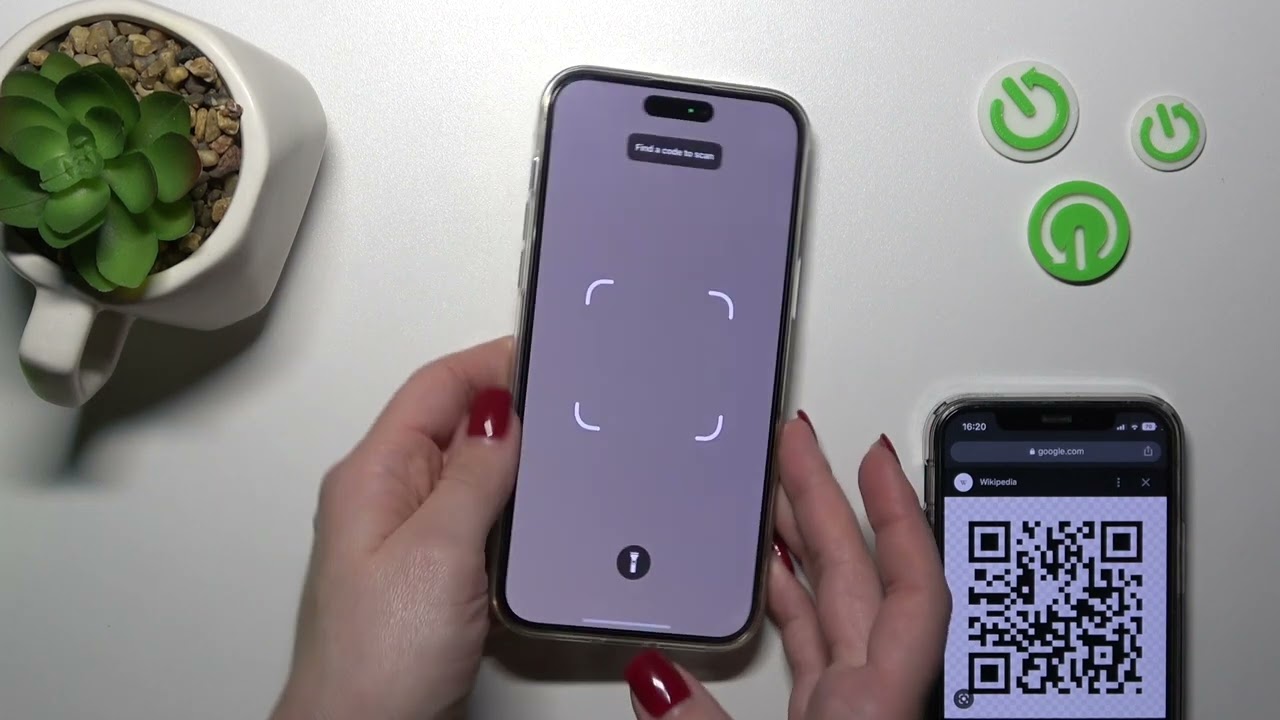
Apple’s Camera launches quickly and recognizes most standard QR codes. You can add a Control Center tile for Code Scanner and scan right from the lock screen. For routine links, this is efficient. Limitations appear when you need persistent history, tagging, bulk scanning across multiple items, or deeper controls over what happens after a scan. If you work with inventory, events, classrooms, or technical documentation, those gaps add up.
Key Use Cases That Push You Beyond the Default
- Operations and inventory: Batch scanning dozens of codes and exporting to CSV or Numbers.
- Marketing and events: UTM-aware link opening, smart routing, and lead capture workflows.
- Education and documentation: Quick context previews that don’t auto-open the browser, plus scan notes.
- Home and travel: Verified Wi-Fi joins, calendar imports, and boarding pass handling with reliable history.
- Security-sensitive environments: Suspicious link warnings, offline decoding, and fine-grained permissions.
How We Evaluate iOS QR Scanner Apps
A good scanner is fast, accurate, and respectful of privacy. Testing involves low-contrast codes, damaged corners, small physical sizes, and moving targets. We also check how apps handle non-URL payloads like vCards, MECARD, iCalendar, SMS, and Wi-Fi. Finally, we validate export options, shortcuts support, and accessibility. The criteria below form the basis for recommendations in this guide.
Evaluation criteria
- Decode performance: Speed and reliability across lighting, motion, and damaged codes.
- Payload support: URL, text, vCard, event, SMS, email, Wi-Fi, app-deep-links.
- Workflow control: Open-in behavior, default browsers, UTM retention, Shortcuts actions.
- History and export: Search, tags, notes, CSV/JSON export, iCloud sync.
- Privacy and security: On-device processing, link checks, permission transparency.
- Accessibility and UI: Large targets, VoiceOver labels, haptic feedback, clean design.
- Value: Free vs. paid, one-time vs. subscription, and absence of noisy ads.
Quick Picks: Matching Apps to Needs
If you scan once in a while, stick with the Camera app. If you scan daily, want exports and history, or need link safety checks, consider a dedicated app. Many readers look for a focused utility with clean UI, reliable decoding, and strong history tools. For an option that emphasizes speed and exports, explore qr code scanner for iphone early in your research so you understand what advanced workflows feel like on iOS.
Feature Comparison Table
The table below summarizes common features you’ll evaluate. Exact feature sets vary by version, but this layout helps you compare options you’re considering from the App Store.
| Capability | iOS Camera (Default) | Dedicated Scanner A | Dedicated Scanner B | Dedicated Scanner C |
|---|---|---|---|---|
| Speed & accuracy | Fast in good light | Optimized for low light, motion | Consistent across sizes | Strong with damaged codes |
| Supported payloads | URL, text, Wi-Fi, contact basics | URL, text, Wi-Fi, vCard, iCal, SMS | Broad, including app deep links | Broad with custom schemas |
| Batch scanning | Not available | Yes (queue & export) | Yes (continuous mode) | Yes (with deduping) |
| History & tags | Transient | Full history with notes | History + tagging | History + smart folders |
| Exports | No | CSV/JSON, share sheets | CSV, iCloud Drive | CSV, Shortcuts, URL schemes |
| Privacy | On-device | On-device; minimal permissions | On-device + optional link check | Granular permissions |
| Automation | Limited | Shortcuts actions & x-callback | Shortcuts + templates | Advanced Shortcuts library |
| Cost model | Included with iOS | Free tier + upgrade | One-time unlock | Subscription with trial |
Deep Dive: The Features That Matter Day to Day
1) Decoding performance and camera ergonomics
Good scanners lock focus quickly and give a clear visual state when a code is recognized. Haptics help you move on without re-checking the screen. If you scan in warehouses or dim restaurants, look for torch control, exposure hints, and stability aids. Motion tolerance reduces rescans when codes are on moving objects like conveyor belts or handheld packaging.
2) Payload handling
Modern apps should parse URLs, plain text, mailto links, SMS templates, Wi-Fi (WPA/WPA2/WPA3), vCard/MECARD contacts, and iCalendar. Reliable parsers also handle percent-encoding, long URLs, and edge cases like non-ASCII SSIDs. If your work uses custom schemes, verify that the app previews the payload so you can decide whether to proceed.
3) History you can actually use
History becomes critical once you rely on QR codes as a reference system. Searchable logs with notes, tags, and timestamps let you revisit scans weeks later. The best apps allow quick export to CSV or copying multiple entries into emails or spreadsheets. iCloud sync means your scans are available across iPhone and iPad without extra steps.
4) Exports and automation
Export is the bridge between scanning and doing. CSV export enables reconciliation, inventory counts, and analytics. Native Shortcuts actions let you create automations like “scan code → append to note → open in preferred browser” or “scan attendee badge → add to a running Numbers sheet.” If you rely on automation, check for input/output parameters in Shortcuts and whether the app supports URL schemes or x-callback-url.
5) Privacy and security
On-device decoding keeps content local, and clear permission prompts ensure the app only accesses the camera when needed. Link inspection is useful when codes may lead to unsafe destinations. A prudent app shows the actual URL, allows you to copy without opening, and can default to Safari’s privacy protections like private browsing or ask-to-open behavior.
6) Accessibility and inclusive design
Accessible scanners provide large capture targets, readable contrast, VoiceOver labels, and consistent haptics. If you present codes to others (e.g., event check-in), large on-screen display and brightness boost help third-party scanners read your code. For low-vision users, clear magnification and torch toggles make scanning reliable in challenging conditions.
When the Default Camera Is Enough
Use the built-in Camera for occasional URL opens, restaurant menus, and one-off Wi-Fi joins. It’s quick, familiar, and avoids another app to maintain. Add the Code Scanner control to Control Center for faster access. If your needs expand—like saving scans, exporting, or scanning in bulk—you will feel the friction points and know it’s time to upgrade.
When to Install a Dedicated QR Scanner
- You scan more than a few times per day and want searchable history.
- You need batch mode for tickets, products, or documents.
- You want exports and Shortcuts automation for downstream tasks.
- You handle sensitive links and want deliberate open/copy flows.
- You want consistent results in low light or with small, dense codes.
Practical Setup on iOS: Five-Minute Checklist
- Install a focused scanner and grant camera permission thoughtfully.
- In settings, enable haptic confirmation and manual open to avoid accidental taps.
- Choose a default browser and set “copy to clipboard” as an option on every scan.
- Enable iCloud sync for history and confirm CSV export works on a sample set.
- Create a basic Shortcut for your workflow, such as “Scan → Append to Note with timestamp.”
Productivity Workflows That Save Time
Event check-in and lead capture
Use batch mode to process attendee badges. Tag entries with session names or ticket types. Export to CSV at the end of the session and share with the team. A Shortcuts action can automatically timestamp each entry and add it to a running list.
Inventory and asset management
For equipment rooms or stockrooms, create a simple CSV schema: item code, location, condition, and timestamp. Scan items as they move. Use deduplication where available to avoid counting the same item twice. Periodically export and reconcile with your inventory system.
Education and training
Place QR codes on lab equipment or classroom materials that link to instructions or safety sheets. A scanner that previews content before opening reduces distractions. Notes attached to scans help teachers and students keep track of context.
Troubleshooting: Getting Reliable Scans
- Low contrast or glare: Tilt the phone slightly, enable torch, or shade the code with a hand.
- Tiny or dense codes: Move closer, keep steady, and let autofocus settle before moving.
- Damaged codes: Try different angles; robust decoders can reconstruct missing modules.
- Motion: Hold the object still or place it on a flat surface and bring the camera to it.
- No link preview: Copy the content to clipboard and paste into a notes app to inspect safely.
Security Basics for QR Codes
Treat QR codes like links in emails. Inspect the destination before opening, especially on public posters or handouts. If your app shows a shortened URL, copy it and expand it in a safe environment first. For Wi-Fi codes, confirm the network name matches signage and watch for SSIDs that mimic official names with subtle differences. Avoid scanning codes that appear tampered with or placed over original signage.
Data Management: Owning Your Scan History
History becomes valuable over time. Tag scans by project or client and review weekly. Use the CSV export as a simple archive and back it up with your documents. If privacy rules require it, regularly clear history or use a scanner that supports auto-deletion after export. On shared devices, consider disabling auto-open to prevent unintended navigation from lock screen scans.
For Business Teams: Policies and Training
Standardize on one scanner across the team and provide a short reference card. Define policies for link opening, data export, and handling of unknown codes. If staff scan customer data, clarify retention periods and storage locations. Use automation to reduce manual steps and variability, then audit the workflow quarterly to keep it accurate.
Developers and Creators: Designing Better QR Experiences
If you generate codes for customers, keep content short and stable. Use high-contrast artwork, quiet zones around the code, and sizes that remain scannable at intended distances. Test in poor lighting and on matte and glossy surfaces. For URLs, avoid chained redirects and ensure mobile-friendly landing pages. Consider deep links that route into your iOS app with clear fallback behavior.
Future Trends: Where iOS QR Scanning Is Headed
Expect incremental improvements in the built-in Camera, along with richer previews for more payload types. Third-party apps will keep differentiating with automation libraries, batch processing, and advanced history features. As privacy rules evolve, local processing and transparent permissions will remain priorities. For many users, the combination of iOS defaults plus a specialized app will deliver the right balance of simplicity and control.
Frequently Asked Questions
Do I need a separate QR app if the iPhone Camera already scans codes?
Not always. If you scan occasionally and just need to open links, the default Camera is fine. Choose a dedicated app if you want batch scanning, searchable history, exports, or more control over how links open.
Are QR scanner apps safe?
Look for on-device decoding, clear link previews, and minimal permissions. A trustworthy app does not require unnecessary data access and allows you to copy or preview content without opening it immediately.
Can QR codes connect me to Wi-Fi automatically?
Yes. iOS supports Wi-Fi payloads that include SSID and password. A good scanner can parse these and hand off to Settings in a controlled way so you confirm before joining.
What about barcodes that are not QR codes?
Many scanners also read Code 128, EAN-13, UPC-A, and other formats. If you handle retail packaging or logistics, confirm multi-symbology support in the app you choose.
How do I export my scan history?
Use the app’s export function to create a CSV or JSON file. You can store this in iCloud Drive, share it with colleagues, or import it into spreadsheets. If you need automation, look for Shortcuts actions that provide scan results as outputs.
Why does a code sometimes not open?
Some codes point to content that requires an app, a region-specific site, or a login. Copy the URL, open it in a different browser, or try again on a network that allows the domain. If the code is damaged, a more robust decoder may still succeed.
How do I scan from the lock screen?
Add Code Scanner to Control Center in Settings > Control Center, then swipe to open Control Center and tap the scanner icon. This is faster than launching Camera and keeps scans focused.
Conclusion
On iOS, QR scanning ranges from casual web links to structured workflows. The built-in Camera is a strong default for quick scans. A dedicated scanner becomes valuable when you want batch mode, searchable history, exports, and automation. Prioritize speed, payload breadth, privacy, and export options, and you’ll end up with a setup that handles everything from menus to warehouse labels with minimal friction. Start with the default, then evaluate a focused utility to see whether advanced features improve your daily tasks.